Website Accessibility for WordPress: A Practical WCAG 2.2 Guide for Business Owners
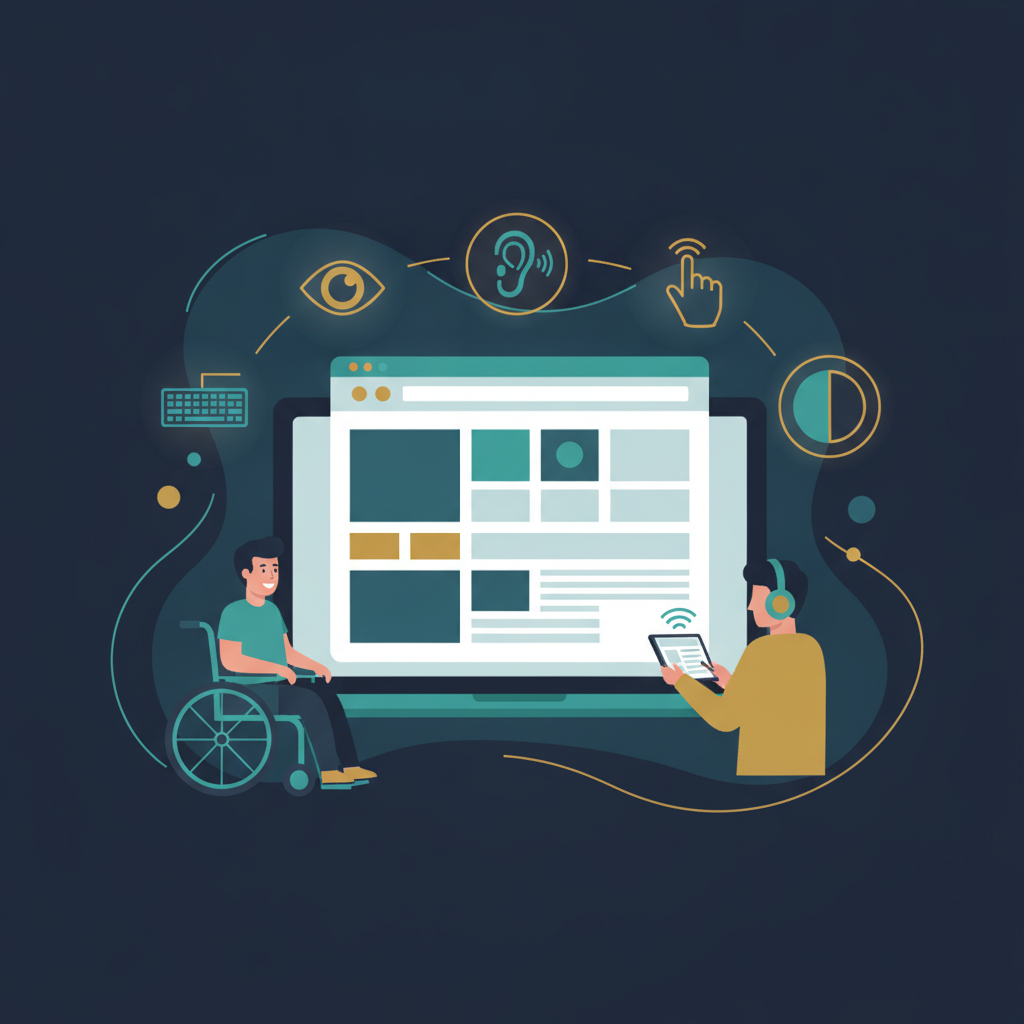
Imagine a customer who wants to buy from you, book a call, or fill out your contact form — but can’t, because your website doesn’t work with their screen reader, their keyboard, or their eyesight. They don’t complain. They just leave and buy from someone else.
That is the real cost of an inaccessible website. Roughly one in six people worldwide lives with some form of disability, and many more have temporary or situational limitations: a broken wrist, a phone in bright sunlight, a slow connection, or simply ageing eyes. Building an accessible WordPress site is not a niche technical exercise — it is about making sure everyone who reaches your site can actually use it.
In this guide we explain what web accessibility means, why it matters for businesses in the US, UK, EU and Canada, and the practical fixes that make the biggest difference on a WordPress site.
What Is Web Accessibility?
Web accessibility means designing and building websites so that people with disabilities can perceive, understand, navigate and interact with them. That includes people who:
- Are blind or have low vision and use screen readers or screen magnifiers
- Are colour-blind and cannot distinguish certain colour combinations
- Are deaf or hard of hearing and rely on captions and transcripts
- Have motor impairments and navigate using only a keyboard, switch device or voice control
- Have cognitive or learning differences and need clear, predictable layouts and plain language
The internationally recognised standard is the Web Content Accessibility Guidelines (WCAG), published by the W3C. The current version, WCAG 2.2, organises its requirements around four principles, often remembered as POUR:
- Perceivable — information can be seen, heard or otherwise sensed (e.g. images have text alternatives, videos have captions).
- Operable — every function works with a keyboard, users have enough time, and nothing causes seizures.
- Understandable — content and navigation are clear and behave predictably.
- Robust — the code works reliably with browsers and assistive technologies.
Each guideline has success criteria at three levels: A (minimum), AA (the level most laws and contracts reference) and AAA (enhanced). For most business websites, WCAG 2.2 Level AA is the sensible target.
Why Accessibility Matters for Your Business
1. Legal expectations are growing
In the United States, website accessibility lawsuits under the Americans with Disabilities Act (ADA) have become common, particularly against eCommerce and service businesses. In the European Union, the European Accessibility Act began applying in June 2025, bringing accessibility requirements to many online shops, banking services and other digital products sold to EU consumers. The UK and Canada also have equality and accessibility laws that apply to digital services. If you sell internationally, accessibility is becoming a baseline expectation rather than a nice extra.
This article is general information, not legal advice — if you have specific compliance obligations, speak to a qualified lawyer in your jurisdiction.
2. You reach more customers
People with disabilities, their families and older users represent enormous combined spending power. A site they can use comfortably wins their trust — and their business — over competitors who ignored them.
3. Better SEO and usability for everyone
Many accessibility practices overlap with good SEO: descriptive alt text, proper heading structure, meaningful link text, captions and transcripts all help search engines understand your content. And clear navigation, readable text and large tap targets improve the experience for every visitor, not only those using assistive technology.
The Most Common Accessibility Problems on WordPress Sites
When we audit WordPress sites, the same issues appear again and again. The good news is that most are straightforward to fix.
Missing or useless image alt text
Screen readers read an image’s alt attribute aloud. Missing alt text leaves blind users guessing; alt text like “IMG_4021.jpg” or “image” is just as unhelpful.
Fix: In the WordPress Media Library, give every meaningful image a short description of what it shows and why it’s there — for example, “Team reviewing a website wireframe on a laptop”. For purely decorative images (background shapes, dividers), leave the alt field empty so screen readers skip them.
Low colour contrast
Light grey text on a white background, or white text on a pale brand colour, may look stylish but is hard to read for many people. WCAG AA requires a contrast ratio of at least 4.5:1 for normal text and 3:1 for large text and important interface elements like button borders and form fields.
Fix: Check your theme’s colours with a contrast checker (WebAIM’s Contrast Checker is free). Adjust colours in the Customizer or theme settings rather than overriding them page by page.
Broken heading structure
Screen reader users often jump between headings to scan a page. If headings are chosen for their size instead of their meaning — or if the page skips from an H1 straight to an H4 — that navigation breaks down.
Fix: Use exactly one H1 per page (usually the title), then H2 for main sections and H3 for subsections. Style headings with CSS, not by picking a different heading level.
Keyboard traps and invisible focus
Many users navigate with the Tab key. If your menus only open on mouse hover, or if your theme removes the focus outline with outline: none, keyboard users either can’t reach content or can’t see where they are.
Fix: Unplug your mouse and try to use your site with Tab, Shift+Tab, Enter and the arrow keys. Every link, button, menu and form field should be reachable, and a clearly visible focus indicator should show where you are. WCAG 2.2 adds a specific requirement that focused items must not be hidden behind sticky headers, cookie banners or chat widgets.
Inaccessible forms
Contact forms, checkout pages and booking forms are where accessibility failures directly cost you money. Common problems include placeholder text used instead of real labels, error messages that only appear in red, and CAPTCHAs that require solving visual puzzles.
Fix:
- Give every field a visible
<label>connected to its input. - Explain errors in text (“Please enter a valid email address”), not just with colour.
- Mark required fields clearly in words, not only with an asterisk.
- Prefer invisible spam protection (honeypots or score-based checks) over puzzle CAPTCHAs. WCAG 2.2 specifically discourages login and authentication steps that rely on memory or puzzle-solving tests without an alternative.
- Don’t make users re-enter information they already gave you earlier in the same process — another new WCAG 2.2 requirement.
Tiny tap targets
Small icons and links crammed close together are hard to hit for anyone with a tremor — or anyone on a phone. WCAG 2.2 introduced a minimum target size: interactive elements should generally be at least 24 × 24 CSS pixels or have enough spacing around them.
Fix: Increase padding on icon buttons, social links, pagination and close buttons. Aim for comfortable spacing between adjacent links in menus and footers.
Videos without captions and auto-playing media
Videos with spoken content need captions; audio content benefits from transcripts. Media that plays automatically with sound is disorienting for screen reader users, whose software is suddenly drowned out.
Fix: Review and correct auto-generated captions on YouTube or Vimeo before embedding. Never autoplay audio, and give any moving content (sliders, animations) a visible pause control.
Vague link text
Screen reader users can pull up a list of all links on a page. A list of ten “Click here” and “Read more” links tells them nothing.
Fix: Write links that make sense out of context: “Read our WooCommerce setup guide” instead of “Click here”.
Choosing an Accessible WordPress Theme and Plugins
Your theme determines much of your site’s accessibility, because it controls menus, colours, focus styles and page structure. When choosing or building a theme:
- Look for themes tagged accessibility-ready in the WordPress.org theme directory — they have passed a review against a set of accessibility requirements.
- Test the demo with only a keyboard before committing.
- Be cautious with heavy page builders and animation-rich templates; they often generate deeply nested markup and inaccessible sliders.
- Check that form plugins output proper labels and accessible error messages.
A word about accessibility overlays
You may see plugins or scripts that promise “instant compliance” with a single line of code, usually by adding a floating toolbar. Many accessibility professionals and disabled users are critical of these overlays: they cannot fix underlying problems such as missing labels or broken keyboard navigation, and they sometimes interfere with assistive technology people already use. A toolbar is not a substitute for fixing your site’s actual code and content.
How to Test Your Site’s Accessibility
No single tool catches everything — automated scanners typically find only a portion of real-world issues. A sensible testing routine combines:
- Automated scans: Run free tools such as WAVE, axe DevTools or Google Lighthouse on your key pages (home, services, contact, checkout). Fix every error they report.
- Keyboard test: Navigate each key page with only your keyboard. Can you reach and use everything? Can you always see where focus is?
- Zoom test: Zoom your browser to 200% and then 400%. Content should reflow without horizontal scrolling or overlapping text.
- Screen reader spot-check: Try NVDA (free, Windows) or VoiceOver (built into Mac and iPhone) on your main user journeys.
- Real users: Where possible, ask people who use assistive technology daily to try your site. Their feedback is the most valuable of all.
A Quick Accessibility Checklist
- Every meaningful image has descriptive alt text; decorative images have empty alt
- Text and interface colours meet WCAG AA contrast ratios
- One H1 per page and a logical heading order
- Everything works with a keyboard, with a visible focus indicator
- Sticky headers and banners never hide the focused element
- All form fields have visible labels and clear text error messages
- No puzzle-only CAPTCHAs; no forcing users to re-enter the same information
- Buttons and links are large enough to tap comfortably
- Videos are captioned; nothing autoplays with sound
- Link text describes where the link goes
- The site language is set correctly (Settings → General in WordPress)
- An accessibility statement explains your commitment and how users can report problems
Make Accessibility Part of the Process, Not a One-Off Fix
Accessibility isn’t a box you tick once. Every new page, blog post, product and plugin update can introduce new issues. The most effective approach is to build accessibility into your workflow: train whoever writes content to add alt text and use headings properly, test new features with a keyboard before launch, and run an automated scan as part of routine maintenance.
Start with your most important user journeys — finding information, contacting you and completing a purchase — and fix the issues there first. Small, steady improvements add up quickly, and every fix makes your website better for every visitor, not just some of them.
WordPress WCAG Compliance: Quick Answers
What is WCAG for WordPress?
WCAG (Web Content Accessibility Guidelines) is the W3C standard for web accessibility. In WordPress it applies to your theme, plugins and content: how menus, forms, images and colours work for people who use screen readers, keyboards or magnifiers.
Is WordPress WCAG compliant out of the box?
WordPress core follows accessibility standards, but compliance depends on your theme, plugins and content. Pick an accessibility-ready theme, then test your own pages, because a single inaccessible plugin or form can break compliance.
Which WCAG level should my WordPress site meet?
WCAG 2.2 Level AA is the sensible target for most business websites, and it is the level that most laws and contracts reference.
How do I check if my WordPress site meets WCAG?
Combine automated scans (WAVE, axe DevTools or Lighthouse) with a keyboard-only test, a 200% zoom test and a screen reader spot-check. Automated tools alone only catch part of the issues.
Do I need a plugin to make WordPress WCAG compliant?
No. Overlay plugins cannot fix missing labels or broken keyboard navigation. Real compliance comes from fixing your theme, forms and content.
Need help? At AJ Tech Studio we build and audit WordPress and WooCommerce sites with accessibility in mind, from theme development to form and checkout fixes. Get in touch to discuss an accessibility review of your website.
Related: need an accessible site built or fixed? See our WordPress development services.